Product
From a file to a signed, sealed copy
Four steps, and the signer never needs an account.

- 1
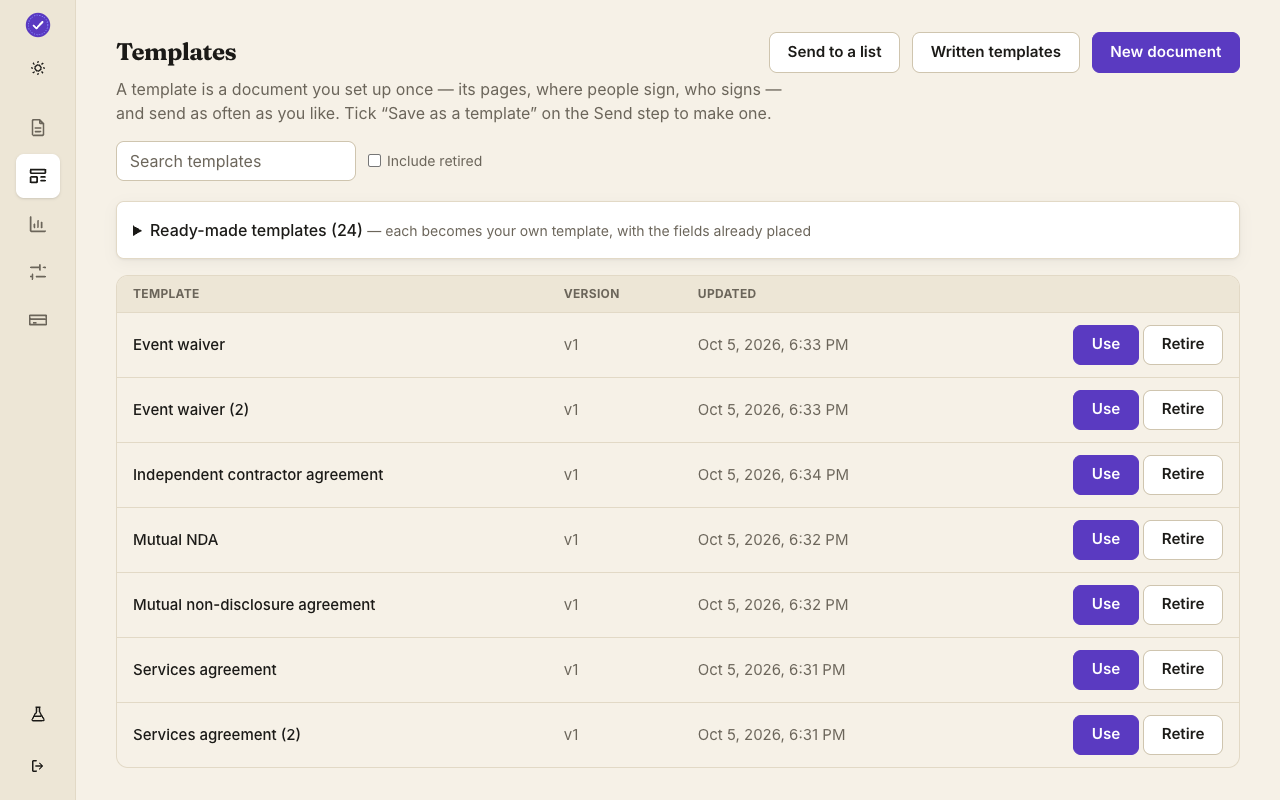
Create
Upload a PDF, Word, Excel, PowerPoint or a photo, or write one in the editor. Drop on fields, or type text tags and let Docustay place them.
- 2
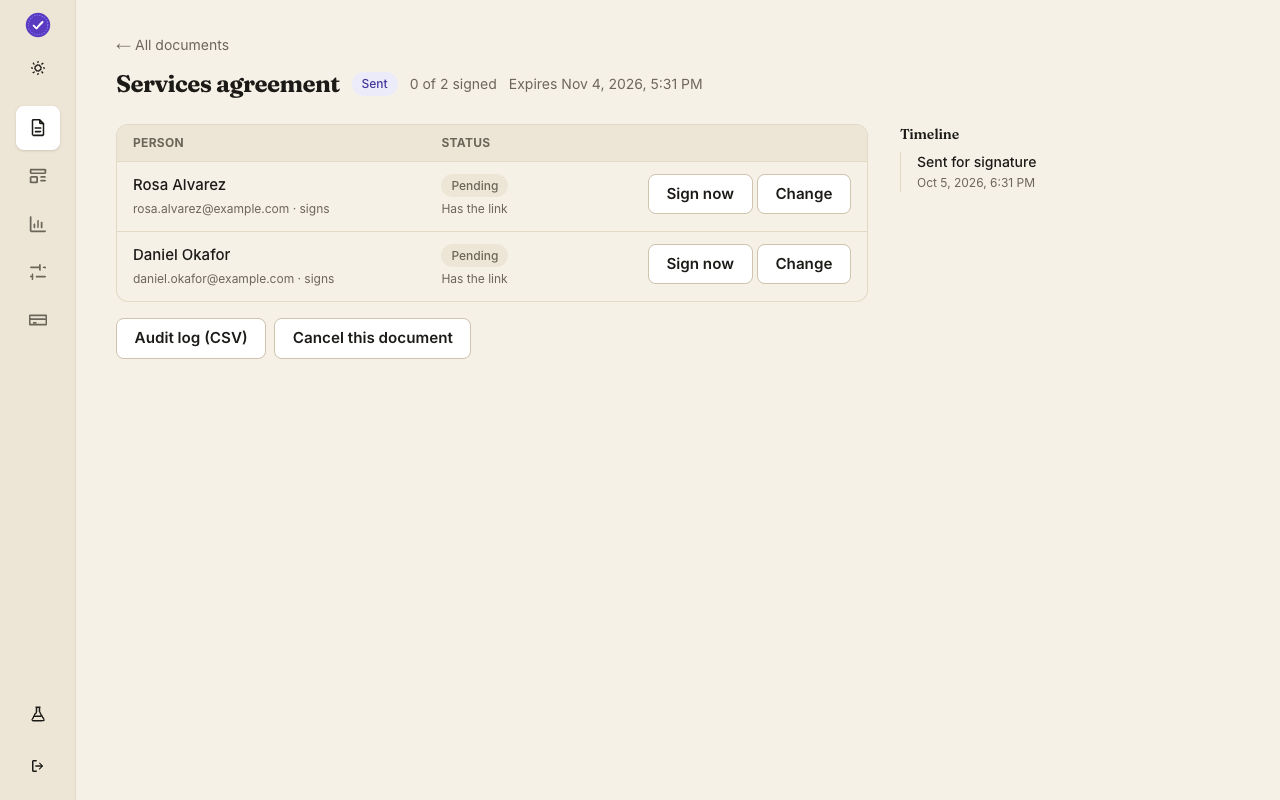
Send
Add who signs, in order or all at once. They get an email link; or sign in person on your own screen; or embed the form in your site.
- 3
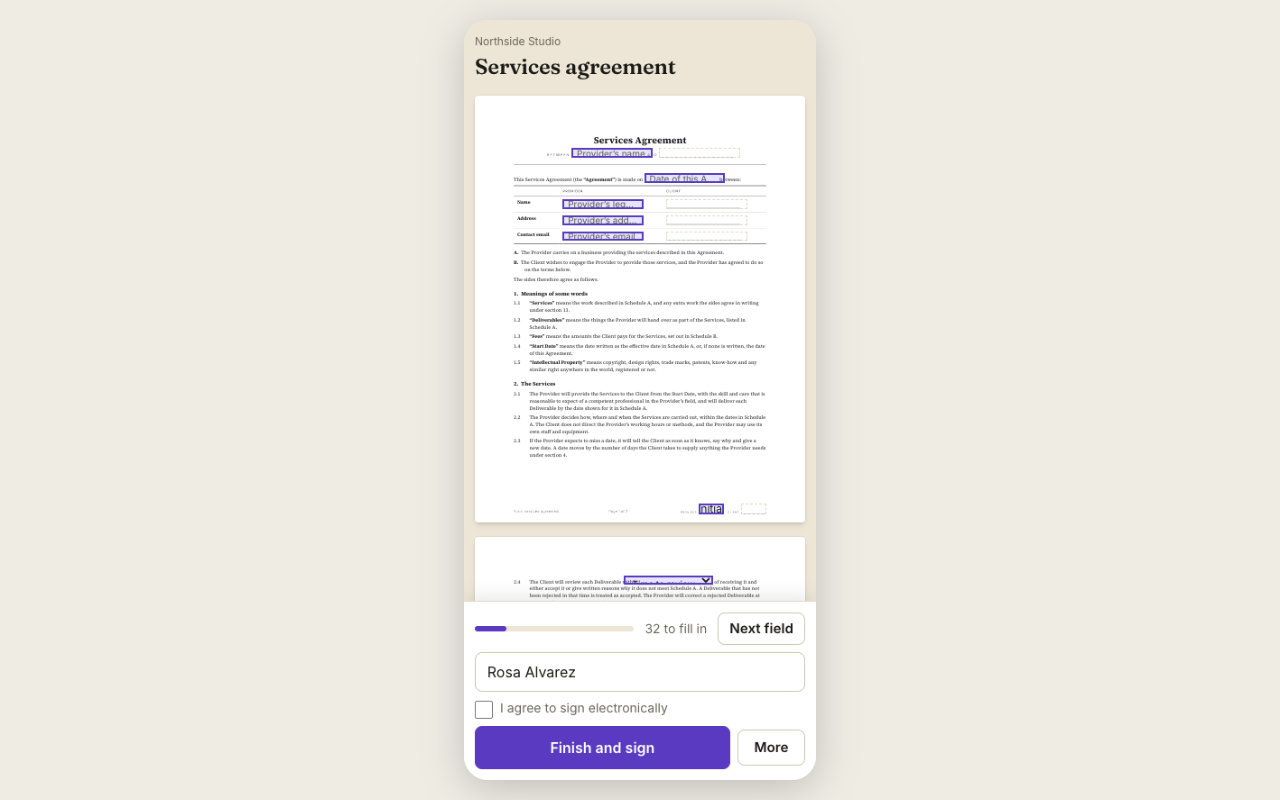
Sign
No account for the signer. They read, fill in, draw or type a signature, and agree to sign electronically. It works on a phone.
- 4
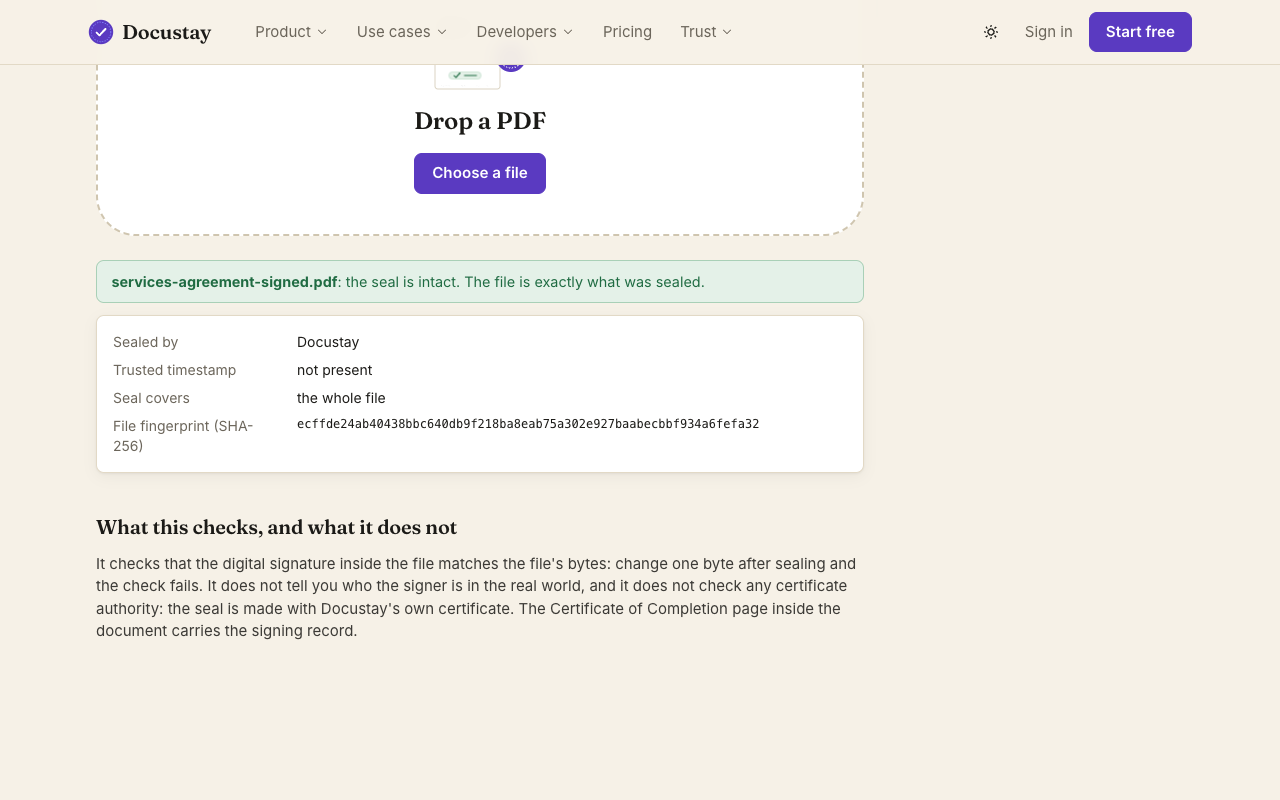
Keep
One sealed PDF with a certificate page and an audit trail, to everyone who signed. Check it yourself on the Verify page.
Who can be on a document
Signers, approvers who say yes or no first, viewers who only need to read it, a copy-only role, and assistants who can fill in fields for a signer. A signer can decline, or pass their turn to someone else, if you allow it.
- SignersFill in and sign.
- ApproversSay yes or no first.
- ViewersOnly need to read it.
- Copy onlyGet the finished file.
- AssistantsFill in fields for a signer.
Read more
- TemplatesTwenty-four to start from, or build your own once.→
- SendingOrder, reminders, send to a list, your own brand.→
- SigningPhone-first, fourteen languages, every role.→
- ProofOne sealed PDF that carries its evidence.→
- EmbeddingThe signing form inside your own site.→
- Text tags and HTMLWrite the fields into the file.→
Step by step, with what you will see
You start from a file or from a template. In the editor you drop fields on the page: a signature box for each person, a date, a few text lines, a checkbox for the part that needs a yes. Each field belongs to one seat, such as Tenant or Landlord. When the page looks right you add the people, choose the order, and press send.
Each person gets an email with a link. The page opens on the document itself, not a login screen. They fill in only their own fields; the rest is read-only for them.
What you can follow afterwards
The document list shows every document with its state: draft, out for signature, completed, declined or expired. Open one to see each person's status, when they opened it, and when they signed. Reminders go out on the schedule you set, and you can send one by hand.
When the last person signs, everyone gets the sealed PDF.
Choosing how people sign
Email link is the default. In person lets you hand a tablet or phone across a desk and have someone sign on your screen. Embedded shows the signing form inside your own website so the signer never leaves it. A public link lets anyone with the address start their own copy of a template, useful for waivers and sign-up sheets.
Questions people ask
How long does a first document take?
Starting from a template, a few minutes: pick it, fill in the details, add the email addresses and send.
Can I send to several people at once?
Yes, all at once or one after another in the order you set. A document can also be a package of several documents in a single send.
What if someone makes a mistake?
While a document is out you can void it and send a corrected one. Signed documents are never edited; a correction is a new document.
Which files can I upload?
PDF, Word, Excel, PowerPoint and photos. They are turned into PDF pages you place fields on.
Keep reading
Start free
Create a workspace, upload a document and send it. No card needed.