Product
Send documents that get signed
Choose who signs and in what order, add your own name and logo, and let Docustay chase the people who have not signed.
- 1
Pick the document
Start from one of the twenty-four templates, your own template, or a file you upload.
- 2
Say who signs
Name each person by role and choose all at once or one after another.
- 3
Add your name
Your logo, your colours, your own email domain and a message in your words.
- 4
Let it chase
Remind by hand, or on Pro let Docustay remind on a schedule. Send a whole list from a spreadsheet.
Three ways to deliver
A worked example: a lease addendum for every tenant
A property manager has a lease addendum with one signing seat for the tenant and a place for the manager's own signature. They choose the template, upload a spreadsheet with a name and an email on each row, run a dry run to see which rows have a typo, fix two, and send. Each tenant gets their own document and their own link; the manager sees the list of states fill in as people sign. Nobody wrote forty emails.
What the email says
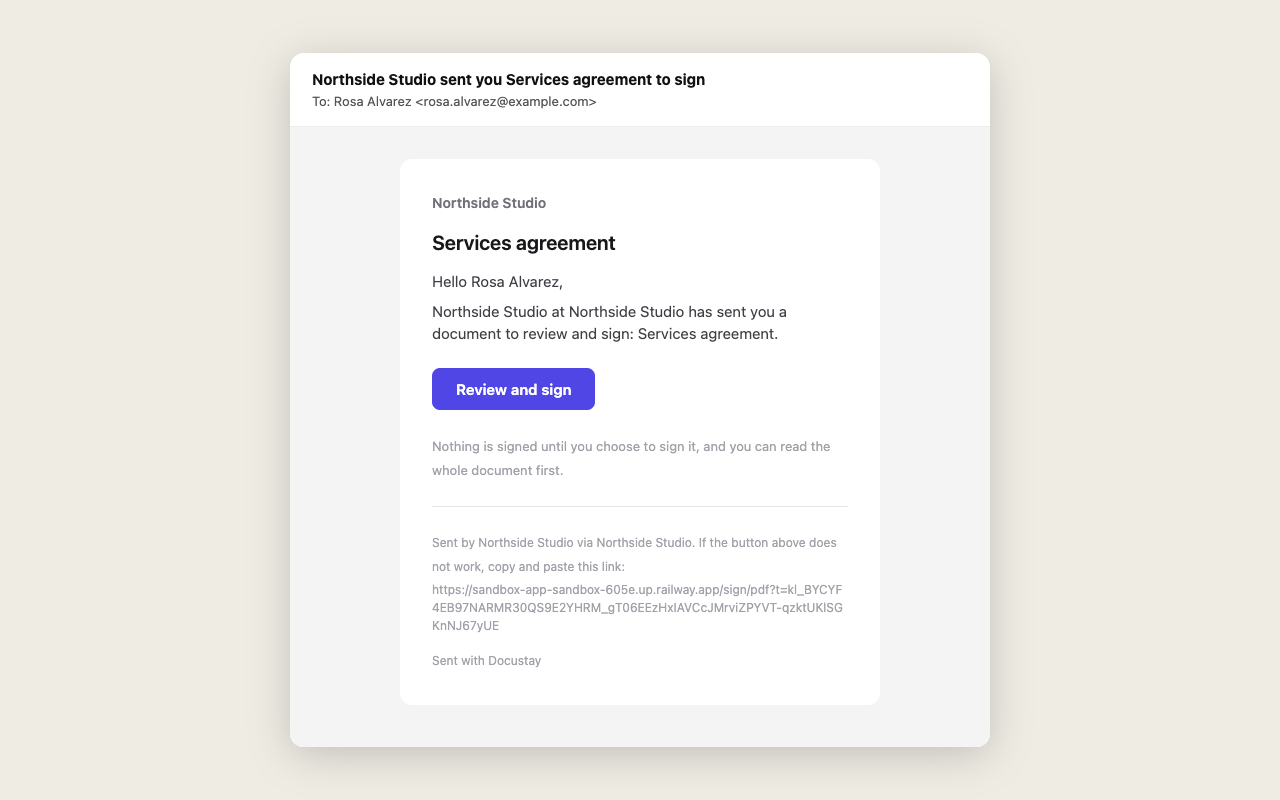
The email carries your logo and colours, the document's title, a short message you can change and one button. It is sent from your own domain if you set one up, so the signer sees a name they know. Merge fields from a list, such as a unit number, can go in the subject and the message.
Email and branding
Change the subject, preview line, body, button label and footer of all eight messages, in each of the fourteen languages, with a live preview and a test send to yourself. Send from your own domain once its DNS records check out, or through your own mail server. Developers can set the same things per document or per workspace from the API, and read a log of every email about a document. See Email templates and Email API in the docs.
Who is told, and when
With an order, the next person gets their link only when the one before them has signed. Everyone is told when the document is complete. If a person has not signed, you can send a reminder by hand, or on Pro let Docustay do it on a schedule. If you cancel a document, its links stop working.
What a send tells you
When you send through the API, the answer says how many signing emails went out and names anyone who was not emailed and why, for example because the daily email limit was reached. The document is still sent, and the person can be reminded later.
Questions people ask
Does a signer need an account to receive it?
No. The email link opens the document directly.
Can I send without emailing anyone?
Yes. Choose in person to sign on your own screen, or embed the form in your own site.
Can I change who a document is for after sending?
Yes, before that person has signed. The old link stops working and the new person gets one; the record shows who was replaced.
Is there a limit on emails?
Each plan has a daily email limit. If it is reached, the send says so and names who was not emailed, so nothing fails silently.
Keep reading
Start free
Create a workspace, upload a document and send it. No card needed.